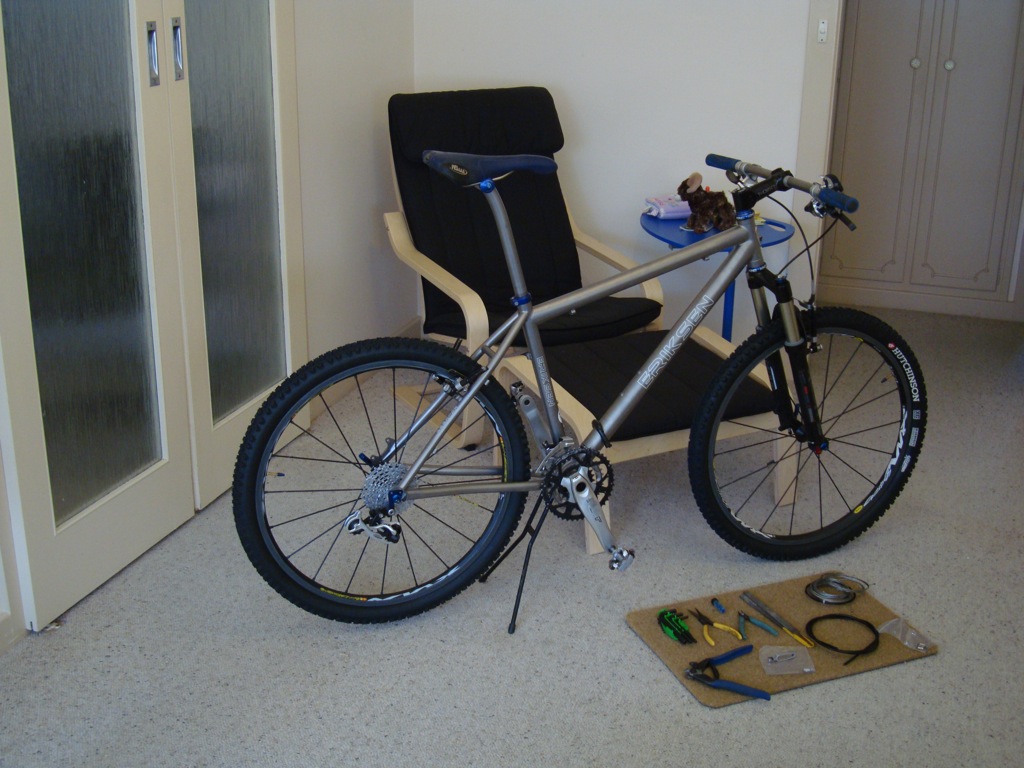
The three bikes we brought with us are now reassembled and ready to ride. All three bikes made it through the three-month transit intact. We’ll start first with the Eriksen.
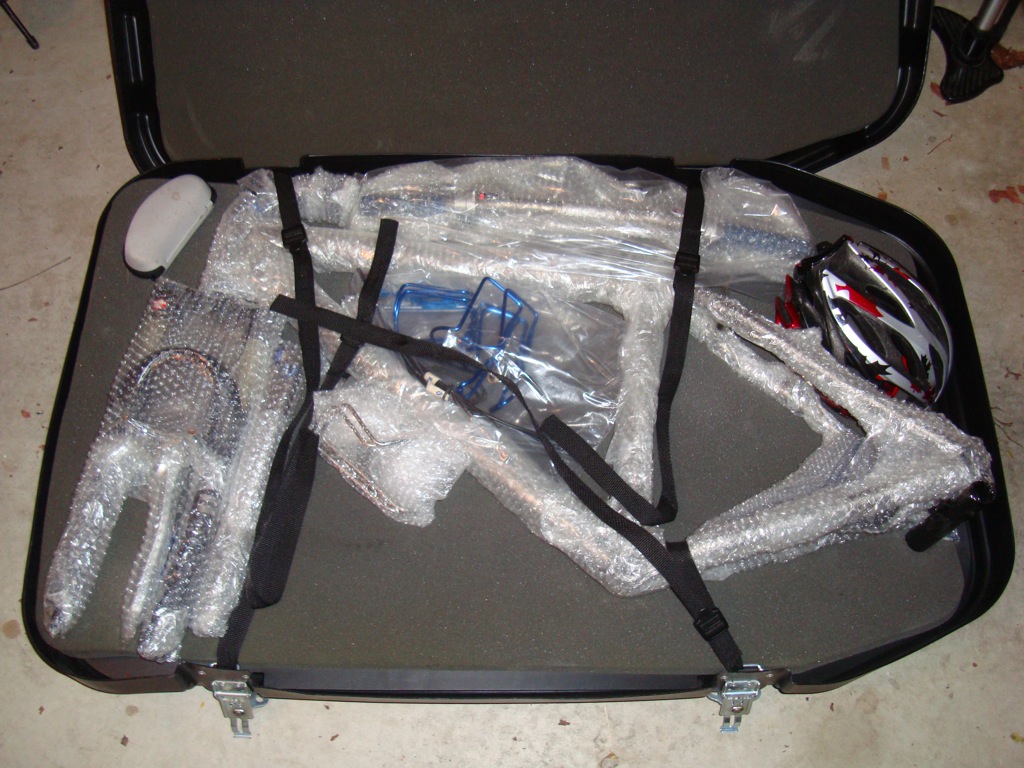
One of the customs requirements is that the bikes had to be clean and free of dirt. This really isn’t an easy as it might sound. Rather than face potential fines and delays for importing a less than spotless bike, I completely tore down the Eriksen and cleaned each component. The tear down took about three days.
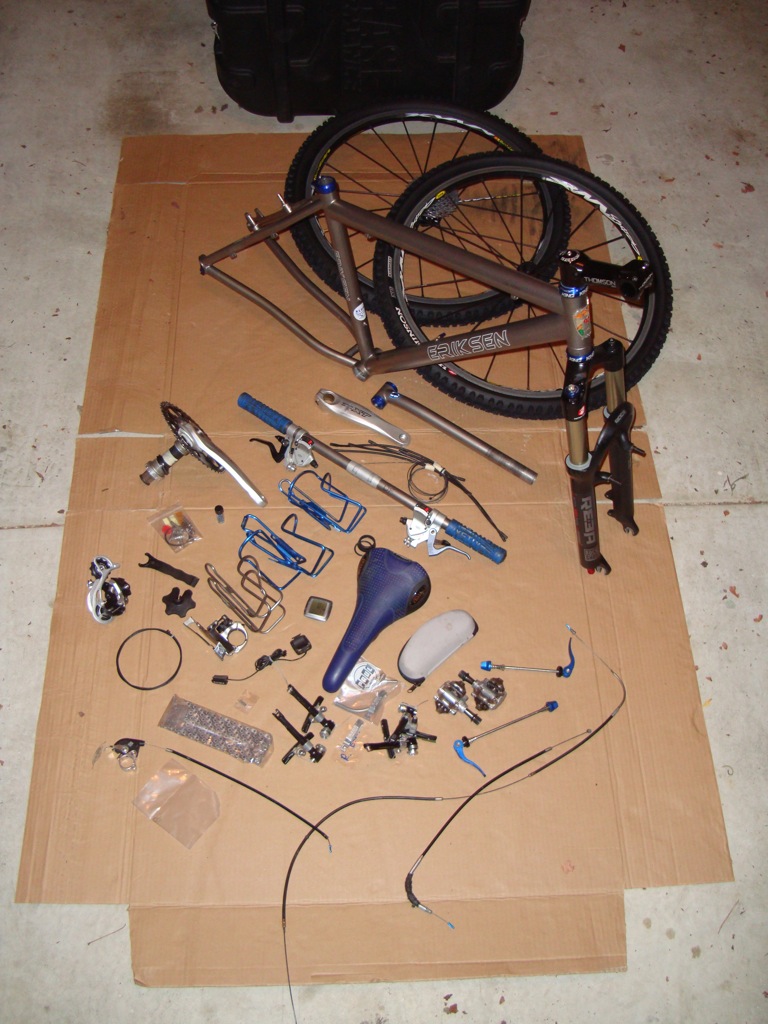
This is what I had once all of the bubble wrap and tape was removed. The reassembly was fun, and took only a few hours. Notable changes include the tires, which are new Hutchinson Toro 2.15″, and a new cyclo-computer. Other wear items such as cables, housing and the chain were also replaced.
The computer I was using in DC suffered an impact with a stream bank on my last ride. The crash left the computer embedded in the mud with a mounting tab cracked off. This is unfortunate as I really like this computer, a Sigma 1600. The Sigma is still in use, but not on the Eriksen (more on that later).
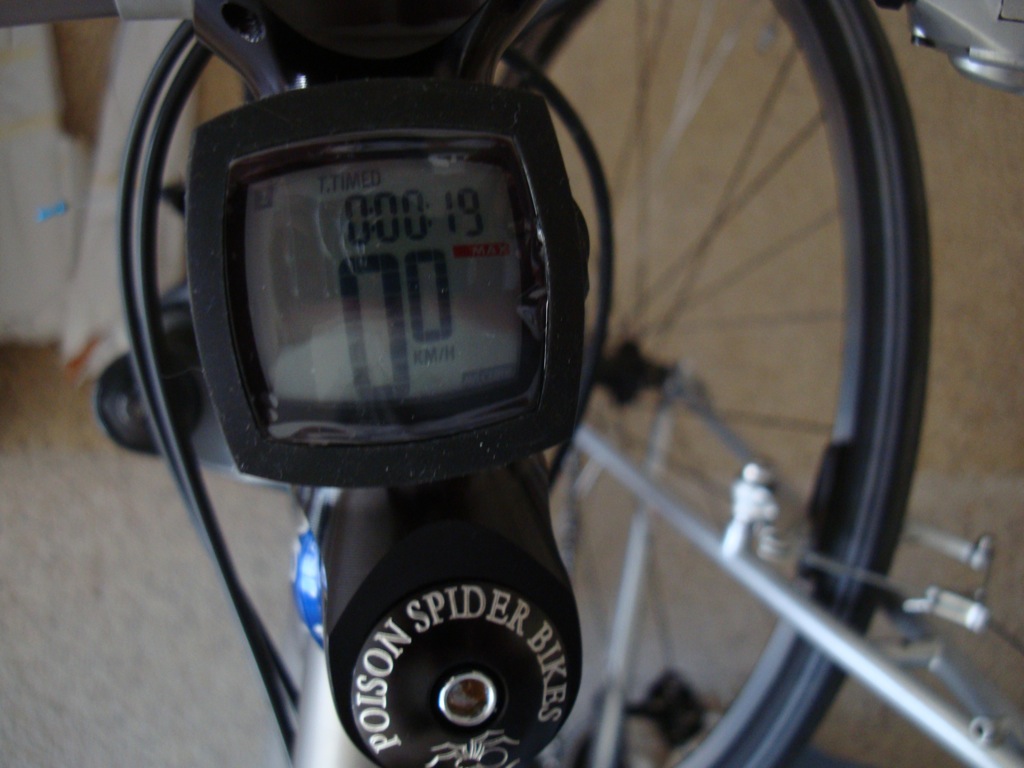
The Eriksen now has a Knog NERD that I got from Bernie Jones Cycles in nearby Warradale. I chose the Knog because of the rubbery mounting and apparent resistance to crash damage. Furthermore, I mounted the Knog on the stem to keep it away from stream bank damage. One note: the included magnet from Knog does not work with Mavic alloy spokes. The Sigma magnet (which does work with Mavic alloy spokes) works fine with the Knog sender.

I’ll let you know if I break it.
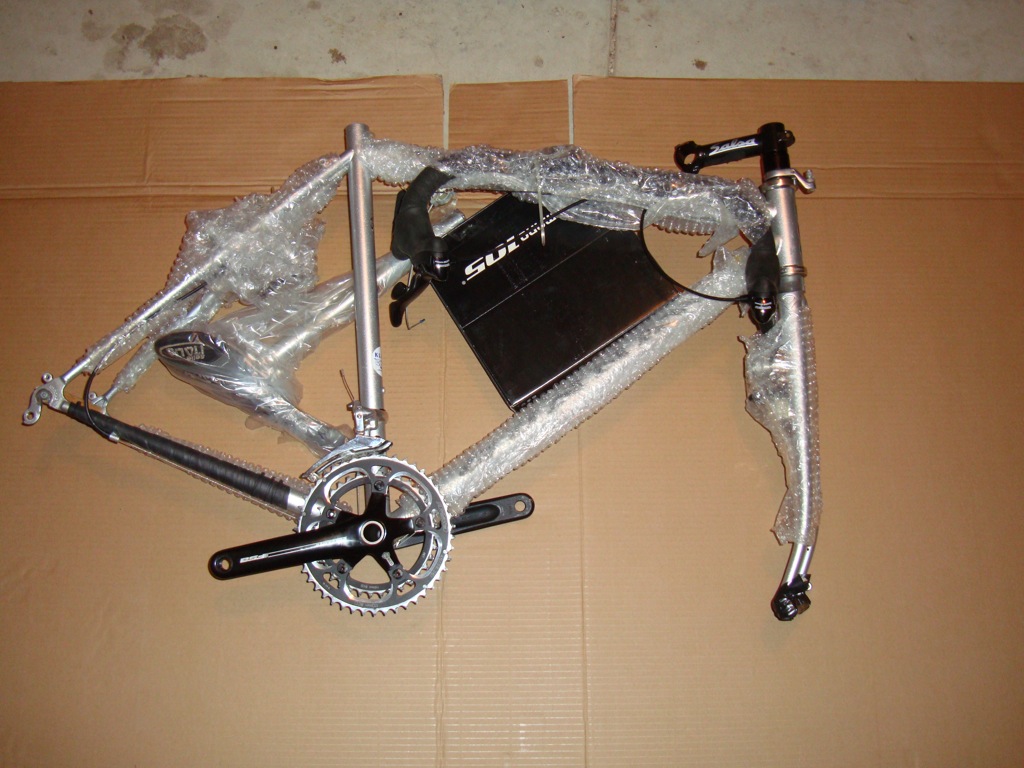
Moving on the Gunnar. The Gunnar wasn’t as muddy as the Eriksen, so I didn’t do a full tear down. It went back together in less than an hour. The only muddy parts on the Gunnar were the knobby tires. Here is a tip: to quickly remove dirt from knobbies remove the tires from the rim, place in the washing machine, add detergent, and wash in hot water. This was done with kevlar-bead tires, and the results were pretty good. I wouldn’t recommend doing this with steel-bead tires as corrosion and mangling of the bead are quite likely.
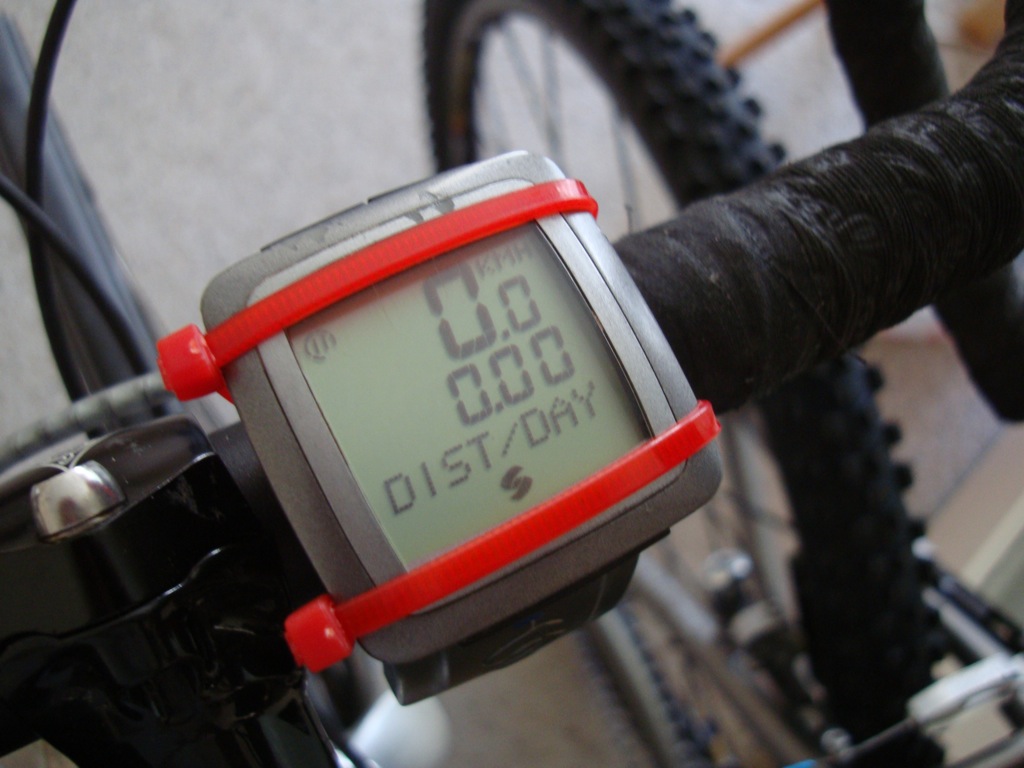
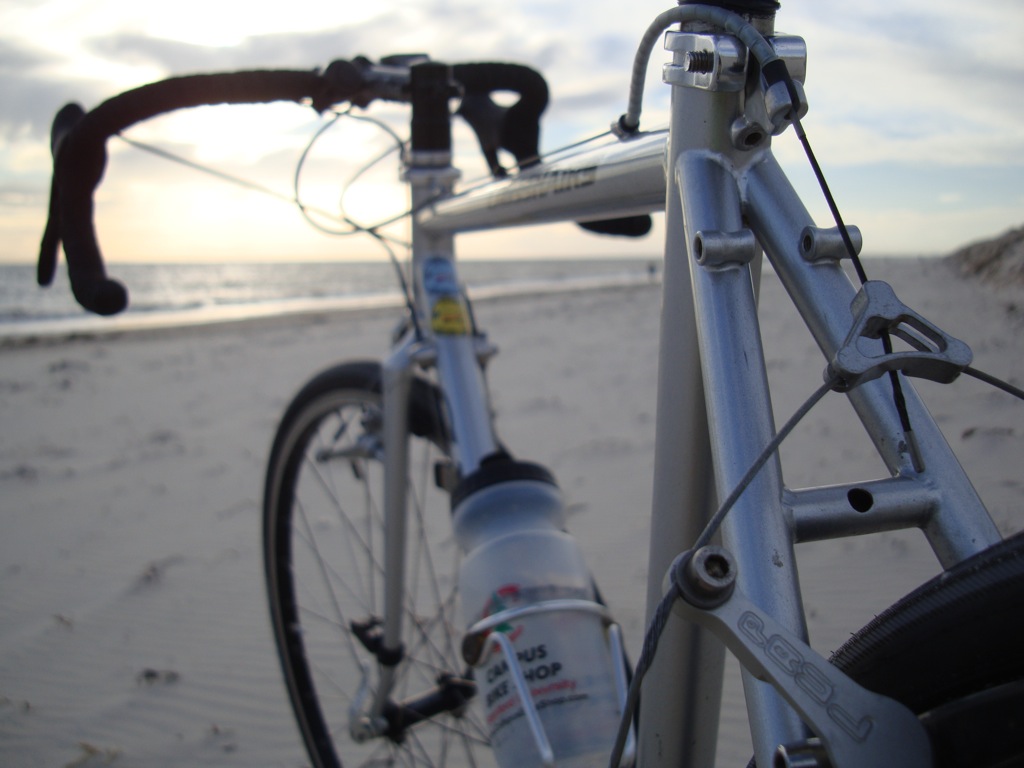
The Sigma computer will now be used full-time on the Gunnar. Due to the now missing mounting tab, the computer is semi-permanently zip tied to the bars. This should work well for road use, but I’m not sure how long it would last off road. The Gunnar is the only bike I’ve ridden so far. Two rides up the coast so far (see the first photo), more to come this weekend.