18 November 2008
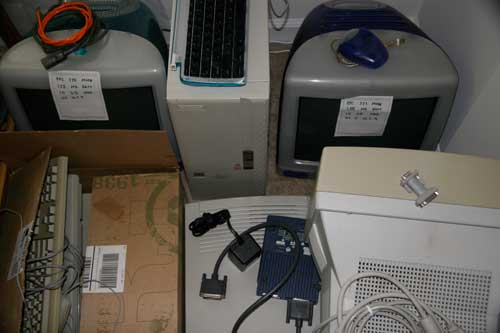
In a move somewhat similar to the One Laptop Per Child (OLPC) program, some enterprising Mac users have suggested the One Used Mac Per Child program. Having used my share of used Macs and discarded more than my fair share of computers and electronic devices, this looks like a useful and practical idea.
My efforts in this area have been limited to rescuing Macs (and non-Macs) from the trash for personal use, and rehabbing a pair of iMac G3s for a couple friends. My only suggestion is to include graduate students (OUMPGS?); they may benefit the most from such a program.
Some discussion of the topic:
Tags: e-waste, Used Mac
Filed under Computing | Comments Off on What to do with a used Mac?

15 November 2008
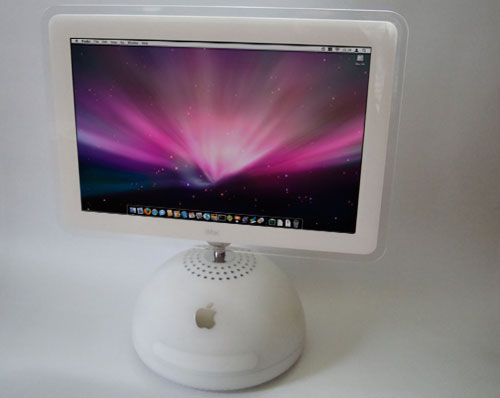
Earlier this week I welcomed a new member to my pile of computers. This newest (and heaviest) system is one of the highly coveted ‘desk lamp’ iMac G4s. System specs are as follows:
- 1.25 GHz G4
- 1.25 GB RAM (post acquisition upgraded from 768 MB)
- 80 GB HDD
- 17″ (1440×900) widescreen LCD
- SuperDrive
- AirPort Extreme (added post acquisition)
So, this iMac would the penultimate G4 iMac, bested only by the similarly-equipped 20″ G4 iMac with the obvious exception of the 20″ 1680×1050 LCD display. This is the only iMac I currently own, previous iMacs were limited to the G3 15″ CRT iMacs.
With the addition of the iMac my Apple tally comes to eight:
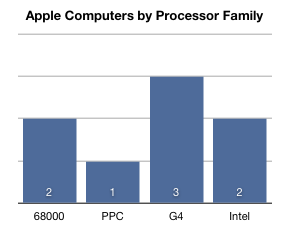
The iMac has helped the G4 contingent make a strong showing in this random metric:
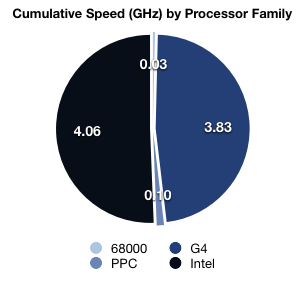
Analysis: The 68000-based Macs are going to have to greatly increase their numbers if there is any hope in rivaling the G4 or Intel Macs. The PowerPC-based Mac could conceivably form a coalition with the G4-based Macs to help push them closer to the top of the pile.
For those coveting my new iMac I’ll let you know how I obtained it and how you might: I had the good fortune to negotiate the acquisition of the iMac for the sum of an Epson photo scanner and an Epson photo printer. You don’t have a printer and/or a scanner that you’re willing to part with? You’re in luck. In a recent episode of The RetroMacCast it was made known that these G4 iMacs occasionally show up on the curb (much like my Trash Server). So, keep an eye out and you too could find yourself as fortunate as me.
Tags: G4, iMac
Filed under Computing | Comments Off on iMac G4
20 October 2008
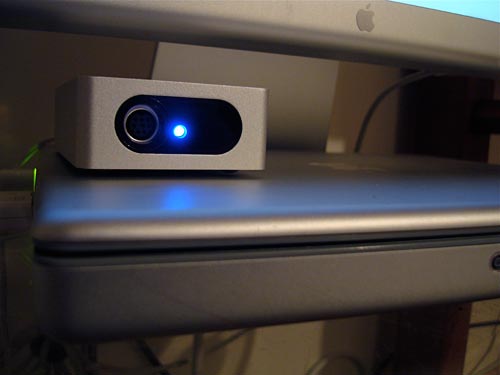
I’ve been playing around with an Mac-based TV setup for a few months, and I think I’ve found a good configuration. Here are the major components:
- Apple 12” PowerBook
- Apple Bluetooth keyboard and mouse
- Apple 23” Cinema HD Display
- Elgato eyeTV 250 plus (elgato.com)
- Apple iPod touch, 16GB
- RPA Tech Air Mouse (rpatechnology.com)
Is this less expensive than an Apple TV? Probably not. Is it easier to setup? No. Is it easier to use? Probably not. Still interested? Keep reading…
The eyeTV and the Cinema Display are connected to the PowerBook, the former via USB. With the eyeTV and the associated software one is able to watch TV and use Tivo-like functions such as pause, rewind, skip commercials and scheduled/live program recording. The eyeTV includes a remote to handle most operations, though the lag between a button push on the remote and the action of the screen is annoying. Overall, the Elgado eyeTV is an excellent video capture device and works well for TV viewing and recording. Other attached peripherals include the PowerBook’s built-in DVD player and a VCR. Aside from the Elgado remote, the Air Mouse handles the rest of the input.
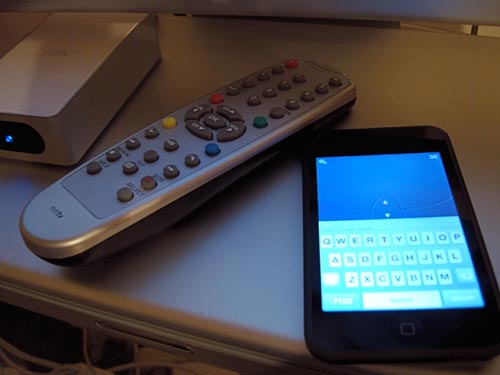
Air Mouse is an inexpensive application that allows the iPod touch (or iPhone) to function as a wireless mouse and keyboard for a Mac or Windows system. Air Mouse running on the iPod is far more convenient than the Bluetooth mouse/keyboard combo as the iPod is smaller and does not require a mousing surface. Air Mouse can be configured to use the iPod’s accelerometers for mouse movement or the touchscreen. I prefer the touchscreen as the accelerometer control requires wild arm movements and potential injury to nearby people or animals. The Air Mouse software is a small contribution to the system, but it really does tie everything together and provides convenient and easy input for the Mac.
This setup functions well, and when paired with VisualHub (techspansion.com) one can export captured/saved video to just about any device. I’ve used the eyeTV to capture family videos from VHS and DVD. This captured video was then processed with VisualHub and saved for use on my iPod touch. VisualHub also has presets for real Apple TVs as well as non-Apple video players and other digital formats. On a side note, VisualHub is no longer available. I haven’t found anything comperable, but I’ll post an update if I do.
Future improvements could include a larger LCD TV (connected via DVI) or swapping the 12” PowerBook for a Mac Mini to save space and free the 12” PowerBook for other uses. I don’t necessarily suggest building a system like this, but it does work and, save Air Mouse, I had all of the pieces already.
Tags: Air Mouse, Apple, Apple TV, Elgado, VisualHub
Filed under Computing | 1 Comment »

