crossgeared.com

Computing

Automated Image Resizing in OS X

Thursday, April 2nd, 2009

I’ve been resizing a lot of images for use on this and other blogs recently. This can be quite tedious and time consuming.

Originally, I was using Photoshop CS3 to open, resize and save the images in a 1024px max width and a 500px max width and appending the appropriate resolution to the end of the image filename. This is a repetitive, predictable and easily scriptable action.

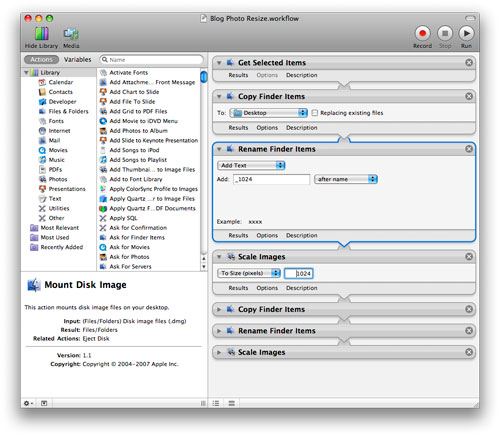
OS X includes a utility called Automator that lets you take these repetitive steps, put them in a workflow, and then save and apply this workflow. The general algorithm for this image resize workflow is pretty simple and straightforward.

This workflow takes one or more images files as input and outputs two image files in same folder as the original images for each source image with the long-side resolution appended to the end of the respective image file.

Update: I just resize to 1024px and the newer versions of WordPress resize the version you see in the post to 500px.
Automator

Here is the algorithm with [Automator action]:

1.  Apply this workflow to the selected Finder items (i.e. select the images to be resized in Finder) [Get Selected Items]

2.  Duplicate the images so the original(s) are not overwritten [Duplicate Finder Items]

3.  Rename the duplicated files: remove the ” copy” text that was added in the filename duplication step and replace it with something meaningful like the resolution [Rename Finder Items]

4.  Resize the image: set the resolution of the long side of the image to a specified size (1024px) [Scale Images]

5.  Duplicate the image so the 1024px version is not overwritten [Duplicate Finder Items]

6.  Rename the duplicated files: remove the “resolution copy” text that was added in the last rename and filename duplication step and replace it with the new resolution [Rename Finder Items]

7.  Resize the image: set the resolution of the long side of the image to a specified size (500px) [Scale Images]

This algorithm will work well only if first, the original file has dimension larger that the resolution specified in the first resize operation, and second, the second resize operation size is less than the size specified in the first resize operation.
Automator Menu

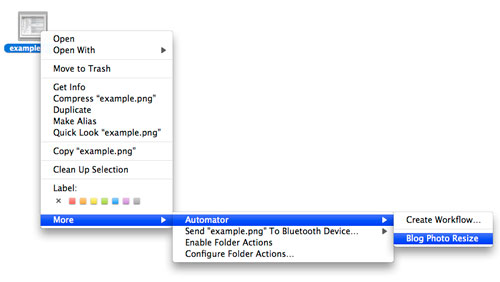
Finally, once your satisfied your workflow works you can ‘Save As Plug-In…’ from the Automator File menu, save it as a Finder Plug-In, and now it is available from the context menus in Finder. This makes the workflow convenient and simple to find and use.

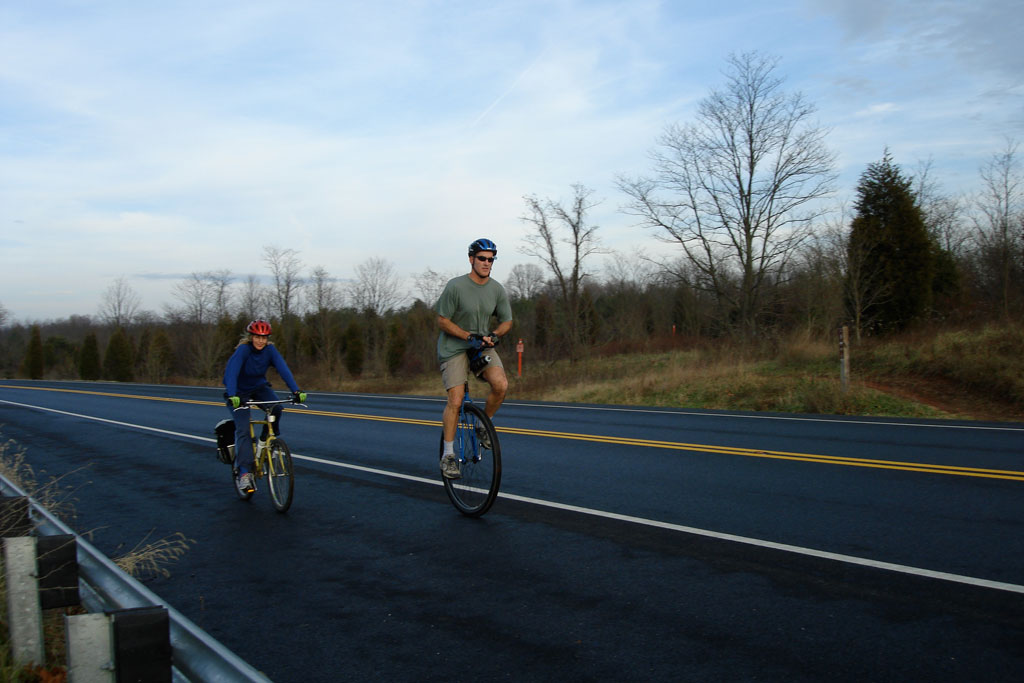
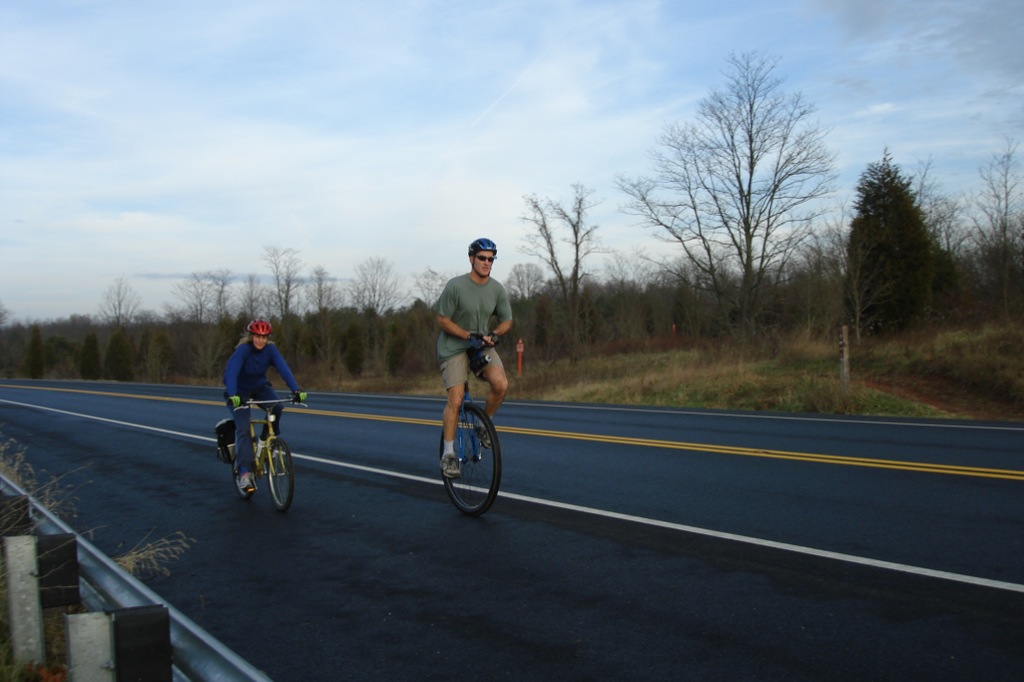
This is a pretty long description of a fairly simple process, but I haven’t had any wordy posts recently. Anyway, on to the results: taking a sample image and applying the resize operations manually with Photoshop CS3, using the Save for Web and Device operation with an output format of jpeg with 60% compression results in a 108K 1024×683 image and a 32K 500×333 image. The same operation using my Automator script results in a 140K 1024×683 image and a 44K 500×333 image. See the results for yourself:

Photoshop resize (click for 1024px wide version):
Photoshop Resize

Automator resize (click for 1024px wide version):
Automator Resize

Non-Apple TV Update

Saturday, January 31st, 2009

Mac Mini G4 Non-Apple TV

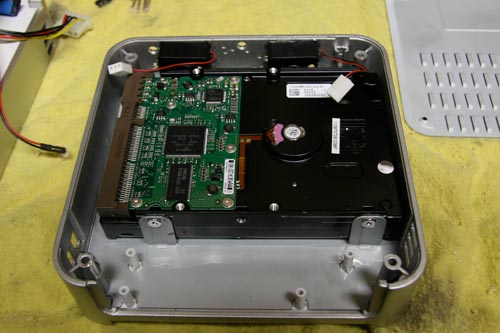
Update:  The Non-Apple TV Apple TV has undergone some minor updates.  First, the 12″ PowerBook has been freed and is portable again.  In its place I have installed a Mac Mini 1.42GHz G4 with 1GB RAM, 80GB HDD and an external 250GB LaCie Mini Hub.  Functionally the Mini is pretty much the same as the PowerBook, the main advantage is a smaller footprint and regained use of the PowerBook as a portable system (once I replace the battery).  As an added bonus, the Mac Mini, Mini Hub, Cinema Display and EyeTV all look pretty good together.

The Air Mouse client and server software were also updated.  The new software adds some nice features including a panel/setting with only media controls, one for web browsing, and custom programmable keys.  The media panel is very usable with large high contrast buttons and almost makes up for the lack of an Apple remote on the PPC-based Mini.  More info on the new Air Mouse features on their site: mobileairmouse.com.

You may have noticed the holes in the front of the Mini Hub.  I drilled these for additional cooling when the original fan in the drive failed.  The original drive in the Minihub was 500GB and generated a lot of heat, and subsequently used the cooling fan quite a bit.  Along with new larger front-mounted fans, the Minihub now uses a 250GB drive that seems to run fairly cool and rarely gets hot enough to trigger the fans.  The lack of noise is appreciated for this application.  My Mini Hub case modification in detail for your review:

Oregon Scientific ATC3K

Tuesday, December 30th, 2008

ATC3k

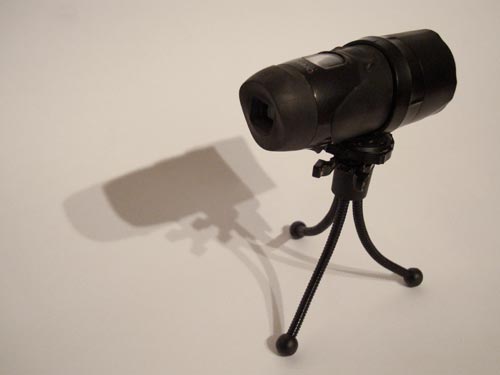
What is this? Here we have an Oregon Scientific Action Cam 3K (ATC3K). The excitingly named ATC3K is a small battery powered video camera that is both compact and waterproof. Relevant specs: 640×480, 30 frames per second, 4GB max storage (SDHC), 120 minutes of video at highest quality setting.

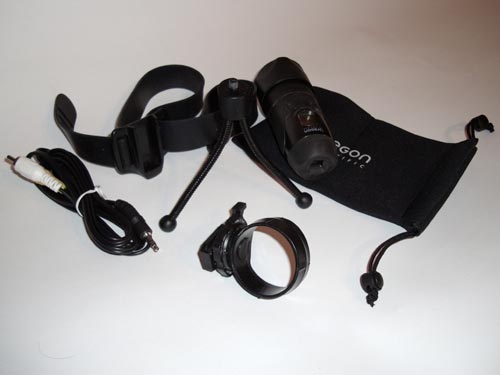
ATC3K Accessories

What else? The camera comes with a multitude of mounts including a small tripod, helmet mount, and handlebar mount. The camera includes a USB connection as well as analog video out.

What do I think of it? The ATC3K seems well built and looks like it can take some abuse. All of the features have worked as advertised and most of the controls are fairly intuitive. The included mounts are nice and, as you’ll soon see, mount the camera quite securely. While I didn’t push the limits of durability, the camera held up just fine to mud spray and a being knocked around on a mountain bike.

ATC3K on the Eriksen

How is the video and audio quality? The video recorded in the highest resolution setting is pretty good, but compression is visible in some conditions. Low light recording is not the best, but the camera performs well in bright settings. Audio capture is okay, but is susceptible to noise transmitted through the mounts. The camera is quite stable in rough conditions, probably the result of relative light weight and secure mounting hardware. Overall, the video and audio quality is nice for the cameras intended use.

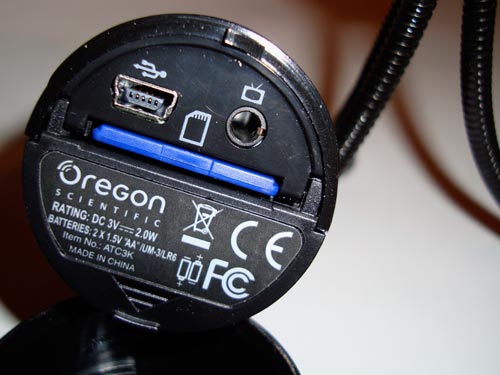
ATC3K Connections

What else? Connectivity with OS X works well and the camera can be accessed directly via Finder or videos can transferred using iPhoto. Transfer speeds are pretty slow and the camera will use battery power during the transfer, so a card reader is advisable. According to the included documentation, the camera can function as a webcam on some Windows systems; this feature is not supported in OS X or 64-bit Vista.

What about a demonstration? Instead of describing the video quality I’ll just show you. This video was taken with the ATC3K in 640×480 30 frames per second with the included handlebar mount as well as hand held; the audio was added from another source in editing. The video was recorded by Eric and myself, edited by Eric using iMovie HD, and further processed by YouTube just for you:

Final thoughts? This is a nice, durable camera that works very well for recording in potentially hazardous environments such as those encountered on a mountain bike or where children or infants are present. I’m sure this camera will see a lot more use than my MiniDV camcorder and should revive my dormant YouTube channel.

Creative Commons License
www.crossgeared.com is licensed under a Creative Commons Attribution-Noncommercial-Share Alike 3.0 Unported License